

If you’re seeking admission into any Nigerian university, polytechnic, college of education, or other tertiary institution, you’ve probably heard about the Joint Admissions and Matriculation Board (JAMB) Central Admissions Processing System (CAPS).
JAMB CAPS is one of the most important platforms in Nigeria’s admission process. It allows candidates to monitor their admission status, accept or reject admission offers, confirm their O’Level results, and complete other admission-related tasks.
Whether you’re a first-time UTME candidate or applying through Direct Entry, understanding how CAPS works can help you avoid common mistakes that may delay your admission.
In this complete guide, you’ll learn everything you need to know about JAMB CAPS, including how to check your admission status, accept or reject admission, upload O’Level results, understand transfer approval, and solve common CAPS problems.
What Is JAMB CAPS?
The Joint Admissions and Matriculation Board (JAMB) Central Admissions Processing System (CAPS) is the official online platform used to process admissions into Nigerian tertiary institutions.
CAPS was introduced to improve transparency and ensure that admissions are based on established criteria. Through the platform, institutions can recommend candidates for admission, while candidates can monitor their admission progress and respond to admission offers.
Why Was JAMB CAPS Introduced?
Before CAPS, candidates had limited visibility into the admission process.
CAPS was introduced to:
- Improve transparency.
- Reduce irregular admission practices.
- Allow candidates to monitor their admission status.
- Give institutions a standardized admission platform.
- Enable candidates to accept or reject admission offers online.
Who Should Use JAMB CAPS?
JAMB CAPS is intended for:
- UTME candidates
- Direct Entry candidates
- University applicants
- Polytechnic applicants
- College of Education applicants
- Candidates applying to Innovation Enterprise Institutions
Features of JAMB CAPS
The CAPS portal offers several important features:
- Admission Status
- Accept Admission
- Reject Admission
- O’Level Verification
- Transfer Approval
- Marketplace
- Candidate Profile
- Admission Monitoring
Each feature plays a different role in the admission process.
How JAMB CAPS Works
Understanding the admission process makes CAPS easier to use.
Step 1
You register for UTME or Direct Entry.
↓
Step 2
You choose your preferred institutions.
↓
Step 3
You participate in any required Post-UTME screening.
↓
Step 4
Your institution evaluates eligible candidates.
↓
Step 5
The institution uploads successful candidates to JAMB CAPS.
↓
Step 6
JAMB processes the admission.
↓
Step 7
Your admission status becomes available on CAPS.
↓
Step 8
You accept or reject the admission offer.
How to Access JAMB CAPS
Follow the steps below to access your JAMB CAPS profile.
Step 1: Visit the JAMB eFacility Portal
Open your preferred web browser and visit the official JAMB eFacility Portal.
On the homepage, click the Login button.
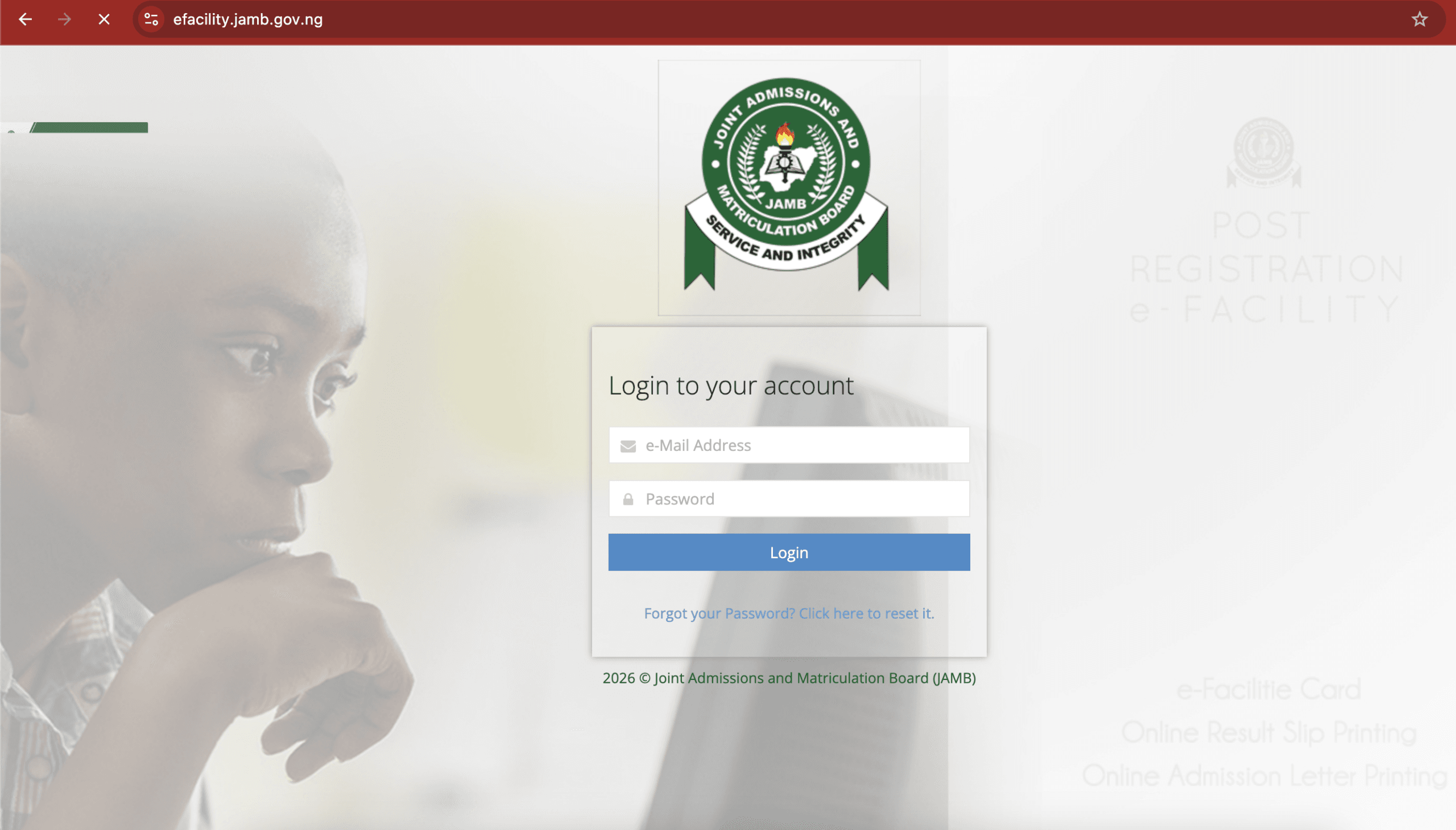
Step 2: Log In to Your JAMB Profile
Enter the email address and password you used when creating your JAMB profile.
After entering your details correctly, click Login to access your dashboard.
Tip: If you’ve forgotten your password, click the Forgot Password option on the login page and follow the recovery instructions.
Step 3: Open “Check Admission Status”
Once you’re logged in, scroll down through your dashboard until you find the Check Admission Status option.
Click it to continue.
This page allows you to check whether your chosen institution has offered you admission through JAMB CAPS.
Step 4: Select Your Examination Year
On the next page, select the correct UTME or Direct Entry examination year from the drop-down menu.
Choosing the correct examination year ensures you’re viewing the appropriate admission record.
After selecting the year, click Check Admission Status.
Step 5: Click “Access My CAPS”
Your admission status page will open.
Scroll down and click the Access My CAPS button.
This will launch the JAMB CAPS portal, where you can manage your admission-related activities.
How to Check Your JAMB Admission Status on CAPS
Step 1: Visit the JAMB eFacility Portal
Open your web browser and visit the official JAMB eFacility portal.
Log in using the email address and password you used during JAMB registration.
Step 2: Open “Check Admission Status”
After logging in, scroll through your dashboard until you find the Check Admission Status option.
Click it to continue.
Step 3: Select Your Examination Year
Choose the appropriate examination year from the drop-down menu.
After selecting the year, click Check Admission Status.
Step 4: Click “Access My CAPS”
On the Admission Status page, click the Access My CAPS button.
This will open the JAMB CAPS dashboard, where you can manage your admission-related activities.
Step 5: Open the “Admission Status” Tab
Inside the CAPS portal, click Admission Status from the menu.
Your current admission status will be displayed on the screen.
Depending on your admission progress, you may see one of the following messages:
- Admission Offered – Congratulations! You have been offered provisional admission.
- Admission in Progress – Your institution is still processing your admission.
- Not Admitted – No admission has been offered yet. Continue checking, as institutions often release admission lists in batches.
- Awaiting Result – Your O’Level result may not have been uploaded or verified successfully.
What to Do If You Have Been Offered Admission
If your status shows Admission Offered, review the institution and course details carefully.
If you wish to proceed with the admission, click Accept Admission on the CAPS portal. After accepting the offer, complete any additional requirements from your institution, such as paying the acceptance fee (where applicable), completing clearance, and registering for your courses.
What If Your Status Shows “Not Admitted”?
Don’t panic if your admission status is still Not Admitted. This doesn’t necessarily mean you won’t be admitted.
Possible reasons include:
- Your institution has not yet released its admission list.
- Your admission is still under review.
- Your O’Level result has not been uploaded or verified.
- Your institution is processing admissions in batches.
Keep checking your CAPS profile regularly and monitor announcements from your chosen institution.
Related Guide: How to Check JAMB Admission Status on CAPS (Complete Guide)
Conclusion
JAMB CAPS is the central platform for managing your admission journey. By understanding how it works and using it correctly, you can track your admission status, respond to admission offers, verify your O’Level records, and stay informed throughout the admission process.
Always rely on official announcements from JAMB and your chosen institution, and keep your login details secure so you can access your CAPS profile whenever needed.
Related Articles
This is where your internal linking strategy becomes powerful.
- How to Accept or Reject Admission on JAMB CAPS
- How to Upload O’Level Results to JAMB CAPS
- JAMB Latest News Today
- JAMB Cut-Off Marks Explained
- JAMB Subject Combination for Engineering