
The JAMB eFacility Portal is the official online platform where candidates manage almost every JAMB-related activity. Whether you want to print your result slip, check your admission status on CAPS, print your admission letter, change your institution, or upload your O’Level result, everything begins with logging into your JAMB profile.
Many candidates encounter problems such as forgotten passwords, incorrect email addresses, locked accounts, or login errors. Fortunately, most of these issues can be resolved in a few minutes.
This guide explains everything you need to know about logging into your JAMB eFacility account in 2026, including how to recover your password, retrieve your email, solve common login errors, and access every feature available on your dashboard.
What is the JAMB eFacility Portal?
The JAMB eFacility Portal is your personal online account created during UTME or Direct Entry registration.
Through your dashboard, you can:
- Check admission status
- Access JAMB CAPS
- Print Admission Letter
- Print Original Result Slip
- Apply for Change of Institution
- Apply for Change of Course
- Perform JAMB Regularization
- Retrieve Registration Number
- Correct your data
- Verify profile details
- Pay JAMB service fees
Think of it as your personal control panel for all JAMB services.
Official JAMB Portal Login URL
Always use the official website: https://efacility.jamb.gov.ng/
Avoid unofficial websites that imitate the JAMB portal, as they may compromise your account.
Requirements for Logging Into Your JAMB Account
Before signing in, make sure you have:
- Your registered email address
- Your JAMB password
- A stable internet connection
- A modern web browser such as Chrome, Edge, Firefox, or Safari
If you no longer remember your login details, don’t worry—we’ll show you how to recover them later in this guide.
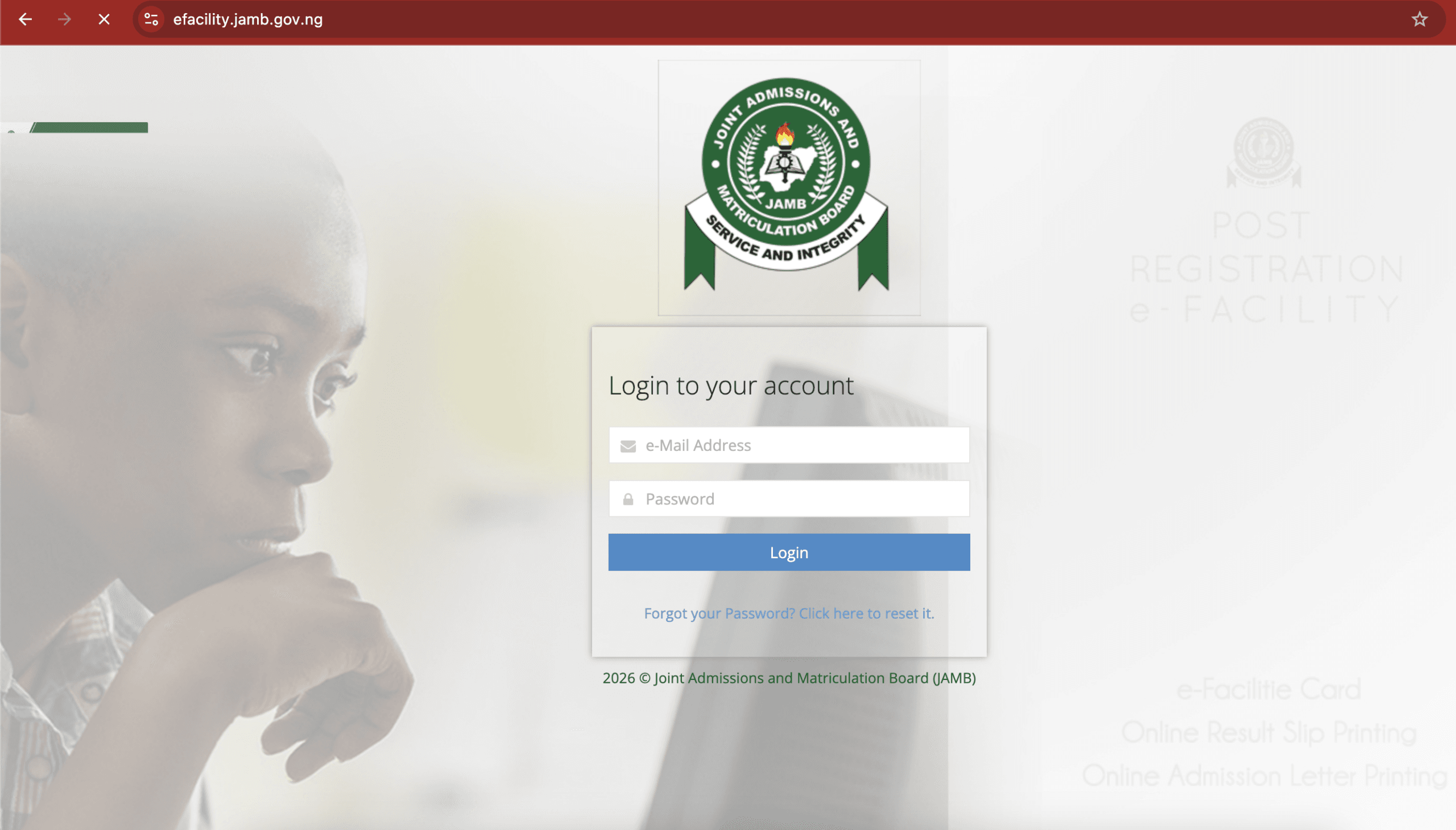
How to Login to the JAMB Portal
Follow these steps to access your account:
Step 1
Open your browser and visit the official JAMB eFacility Portal.
Step 2
Click Login.
Step 3
Enter your registered email address.
Step 4
Type your password carefully.
Step 5
Click Login.
If your details are correct, you’ll be redirected to your personal JAMB dashboard.
Forgot Your JAMB Password?
If you cannot remember your password, follow these steps.
Step 1
Visit the JAMB eFacility login page.
Step 2
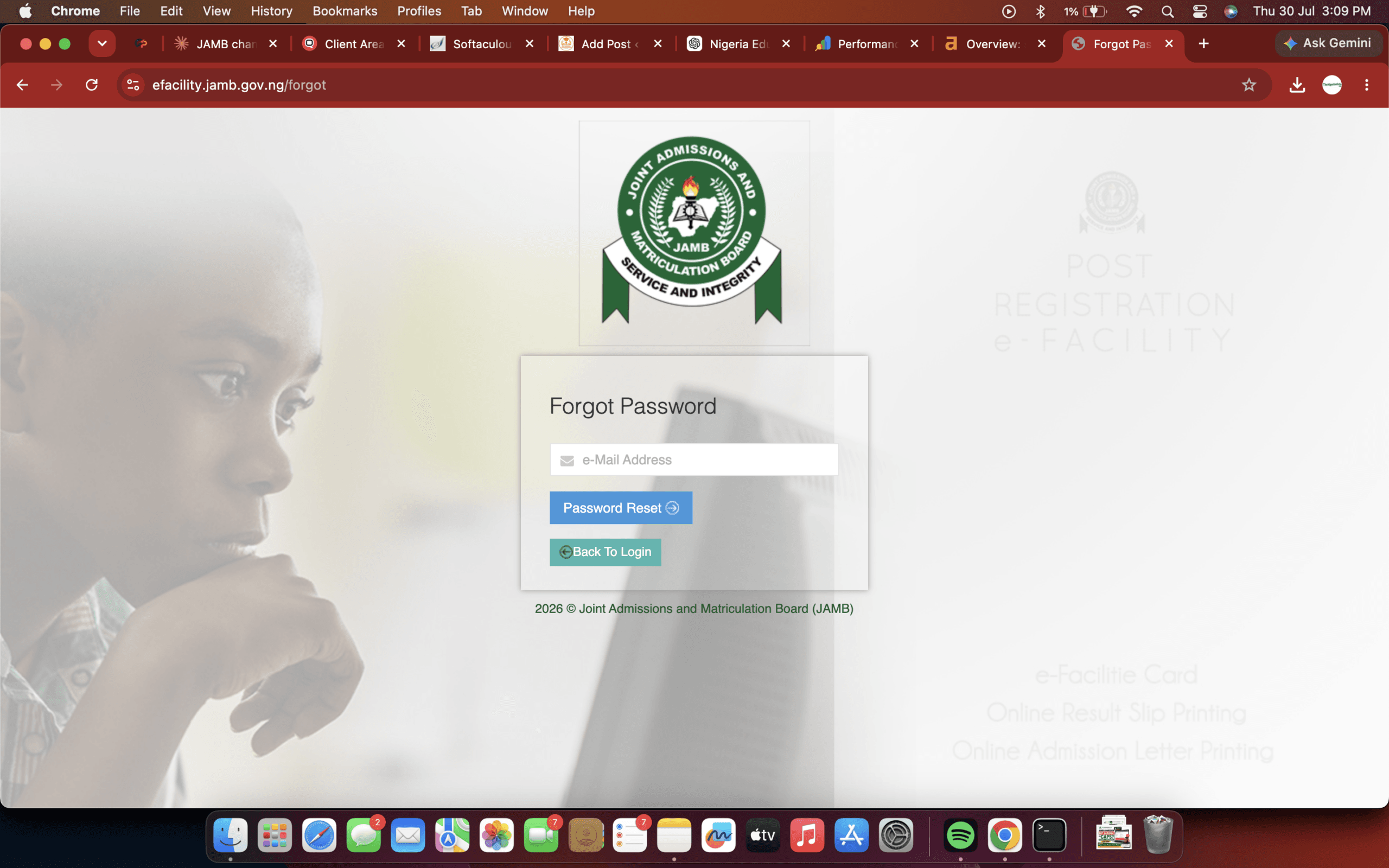
Click Forgot Password.

Step 3
Enter your registered email address.
Step 4
Click Password Reset.
Step 5
Open your email inbox.
JAMB will send a password reset link.
Step 6
Click the link.
Step 7
Create a new password.
Step 8
Return to the login page and sign in with your new password.
Didn’t Receive the Password Reset Email?
Check:
- Spam folder
- Promotions folder
- Junk folder
Also verify that you entered the correct email address.
Sometimes email delivery may take several minutes.
Forgot Your JAMB Email Address?
This is one of the most common problems.
If you cannot remember the email used during registration, try the following:
Option 1
Search your inbox for emails from JAMB.
Search keywords like:
- JAMB
- eFacility
- Admission Letter
- Result Slip
Option 2
Check any previous printouts.
Your email often appears on:
- Registration Slip
- Result Slip
- Admission Letter
Option 3
Visit an accredited JAMB CBT centre.
With proper identification, they can help verify the email linked to your profile.
JAMB Account Locked?
Your account may become temporarily locked after several unsuccessful login attempts.
Common reasons include:
- Too many incorrect passwords
- Suspicious login attempts
- Multiple devices accessing simultaneously
Solution
Wait approximately 30–60 minutes before trying again.
If the issue persists:
- Reset your password.
- Clear your browser cache.
- Try another browser.
If the account remains inaccessible, contact JAMB support or visit an accredited CBT centre.
Related Guides